Summary
The Academic Advisement Report (AAR) is available for undergraduate students.
Instructions
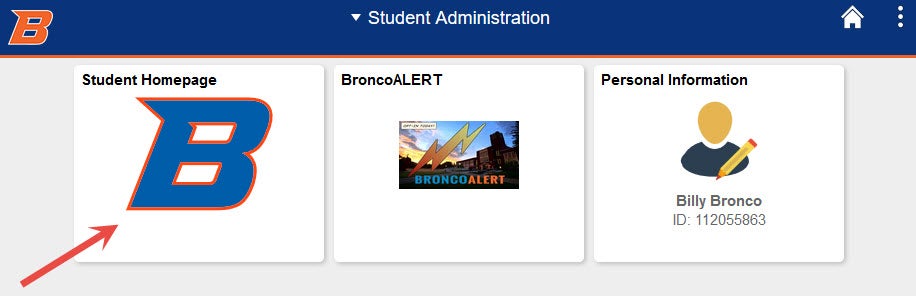
Select Student Homepage.
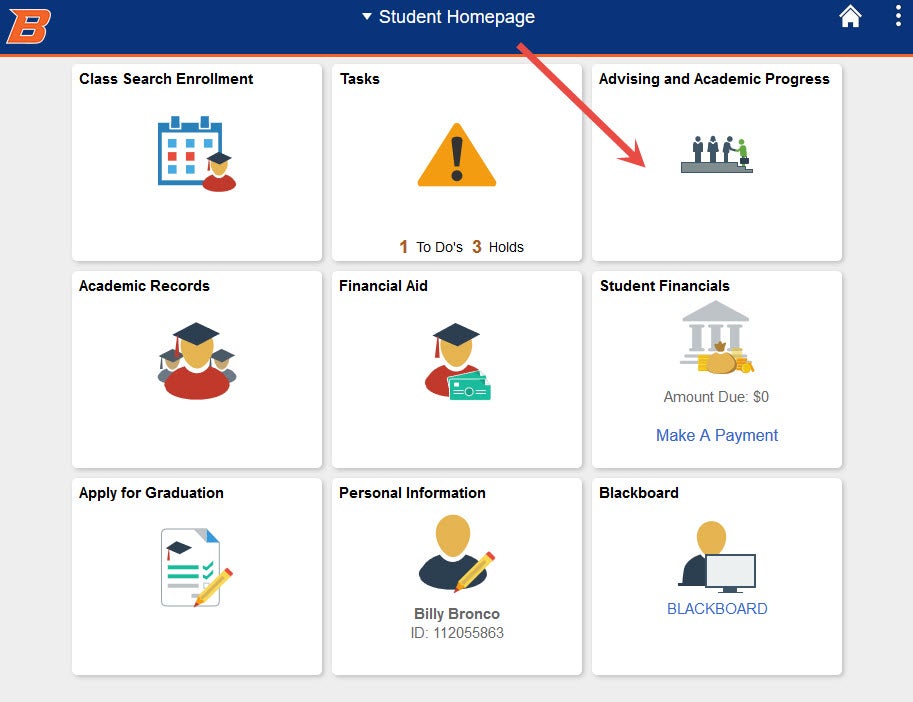
Select Advising and Academic Progress.
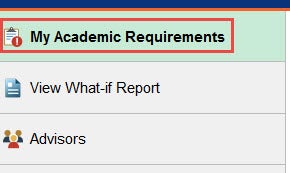
Select My Academic Requirements tab. The Academic Requirements Report (AAR) will automatically generate.
The status icons make it easy to identify if a class is Incomplete, Repeated, Taken, In Progress, or Planned.
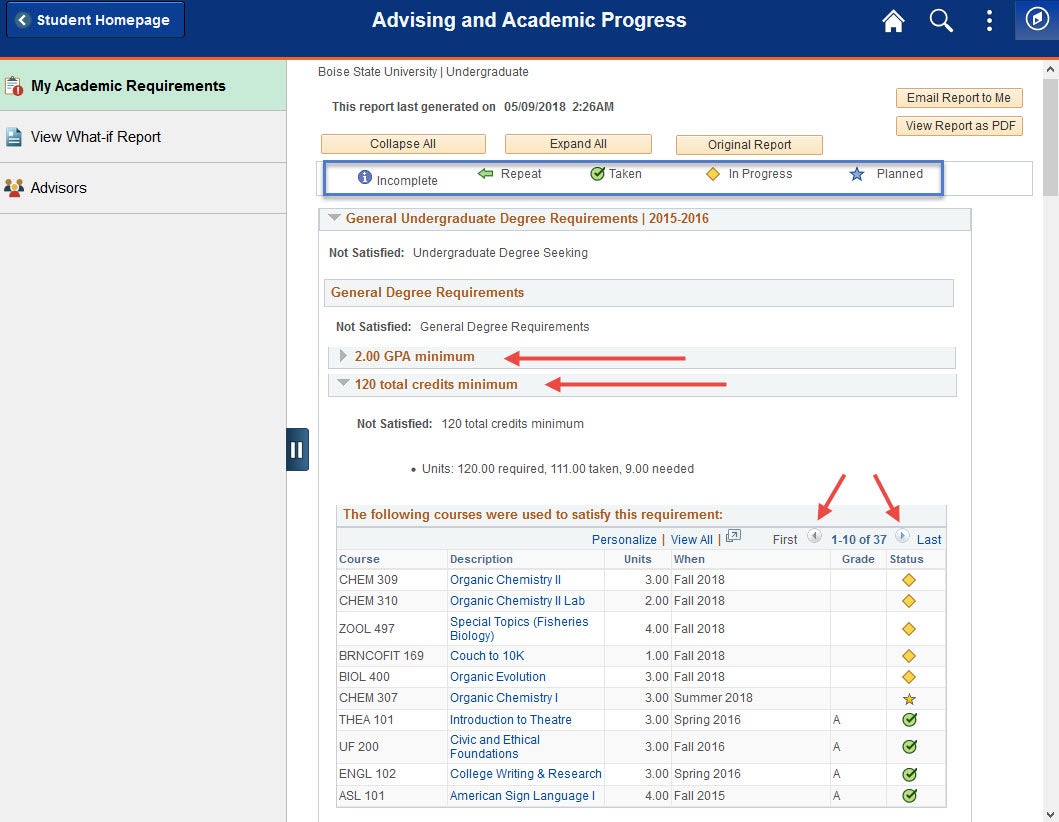
Requirements that have been fulfilled display collapsed, but you can expand them by clicking on the icon.
Requirements that are not satisfied display expanded. You can collapse these items by clicking on the icon.
The PDF version of the report lists the student’s entire course history, including courses that do not satisfy a requirement.
Need Assistance?
Contact the Office of the Registrar at (208) 426-4249, (800) 824-7017, or email regmail@boisestate.edu.
Video Transcript
In this video, we’re going to cover how to run an academic advisement report, or an AAR.
First, log in to myBoiseState and then select “Student Center” under “My Resources.”
Then, click on the tile that reads “Advising and Academic Progress.” Underneath the “My Academic Requirements” tab, the AAR, or academic requirements report, will automatically generate. The status icons shown here make it easy to identify if a class is incomplete, repeated, taken, in progress, or planned.
Requirements that have been fulfilled display collapsed but can be expanded by clicking on the icon. Requirements that are not satisfied display expanded. You can collapse these by clicking on the icon. You can view the report as a PDF by clicking on this button. The PDF version of the report lists the entire course history, including courses that do not satisfy a requirement.