Step-by-step Instructions
Step 1
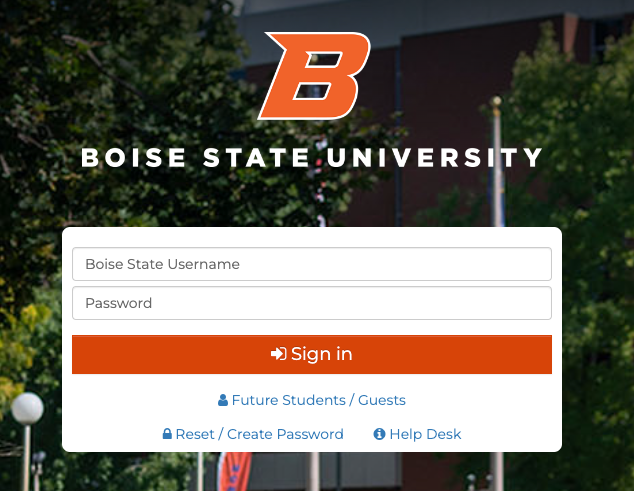
Go to my.boisestate.edu and enter your Boise State username and passphrase.
Step 2
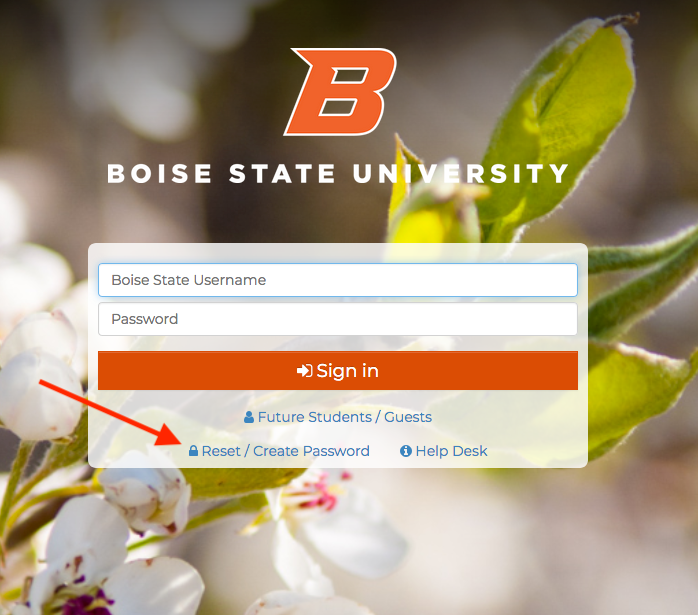
If you have not logged into my.boisestate.edu before, you will need to create a password using the Reset/Create Password button. You will need your instructor ID number which was sent to you via email when the PD course was created.
Step 3
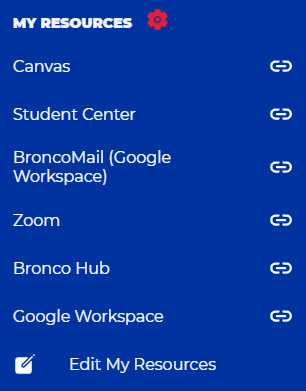
Scroll down until you find the MY RESOURCES section on the left side navigation bar.
Step 4
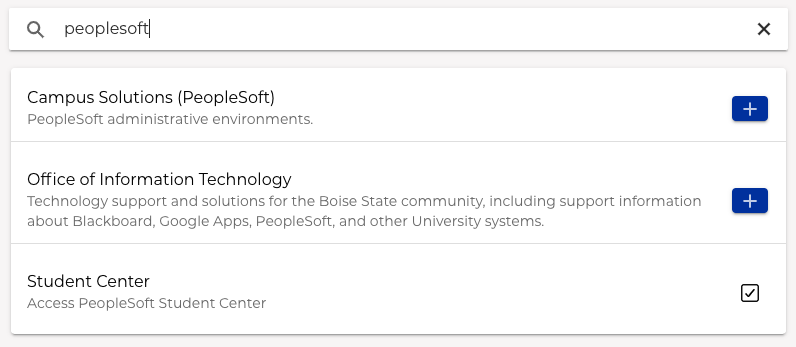
Customize the links available by following the my boisestate help Customize Your My Resources Menu in myBoiseState instructions and adding the Campus Solutions (Peoplesoft) link.
You may need to search for this link in the search bar in the top right while customizing your resource menu.
Questions
If you have any questions, please contact the Extended Studies Customer Service team at (208) 426-1709 or email extendedstudies@boisestate.edu.
Viewing Class Roster and Posting Grades
Step by step instructions on how to view your class roster or how to post grades.