University faculty and staff can access their on-campus Microsoft-Windows-based computer from home or from other off-campus locations.
Work computer is used in the following instructions to refer to the remote computer you wish to access. Home computer refers to the device used to initiate the remote session.
Requirements
- The work computer must be using Microsoft Windows, and must be powered on and awake. (It can be locked, and logged on or off.)
- You must have Administrator access on your work computer. (Contact the Help Desk if you’re unsure.)
- You must have Boise State VPN software installed and configured on the home computer.
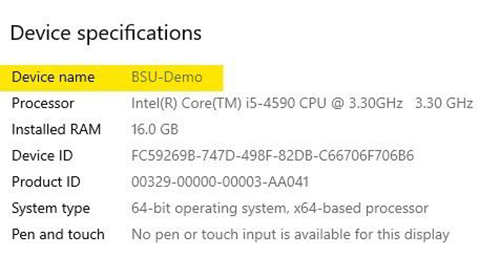
- You must know your work computer’s name. (To find it, type “computer name” in the Windows search bar and select View your PC name. A Settings window will appear. Look for Device name – this is your computer name.)
- If you are using a Mac as your home computer, you must download and install the latest version of the Windows App from the App Store.
- If you are using a Windows computer as your home computer, use Remote Desktop Connection. This program is installed by default on Windows computers.
How to connect
From Microsoft Windows
- Launch Boise State’s GlobalProtect VPN and sign in.
- Once your VPN session is established, launch the Remote Desktop Connection App (select Start, type “Remote Desktop Connection”, and run the application).
- When prompted for the computer name, enter the name of your work computer and select Connect.
- When prompted for a user name, enter your Boise State email address (e.g., BusterBronco@boisestate.edu) and password.
- You should now be connected to the work computer desktop.
How to disconnect
- Select Start > Power > Disconnect on your work computer. This will leave your session intact so you can pick up again when you come into work, or if connect again from home.
- Disconnect your GlobalProtect VPN session if you are finished.
From Apple macOS
- Launch Boise State’s GlobalProtect VPN and sign in.
- Once your VPN session is established, launch the Windows App from your Applications folder.
- Select Add PC. Enter the computer name for your work computer, then select Add.
- A new entry for your work computer will appear. Double-click this entry to start your remote desktop session.
- When prompted for a user name, enter your Boise State email address (e.g., BusterBronco@boisestate.edu) and password.
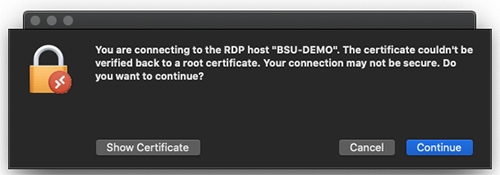
- You may receive a security warning (and that’s okay). Select Continue.
- You should now be connected to the work computer desktop.
How to disconnect
- Select Start > Power > Disconnect on your work computer. This will leave your session intact so you can pick up again when you come into work, or if connect again from home.
- Disconnect your GlobalProtect VPN session if you are finished.
Need assistance?
For more information, contact the Help Desk at (208) 426-4357, helpdesk@boisestate.edu, or ServiceNow.